What are backlinks and how do I use them in blogger?

Thursday, October 7, 2010

Backlinks and trackbacks are the same for blogger !

Backlinks enable you to keep track of other pages on the web that link to your posts. For instance, suppose Alice writes a blog entry that Bob finds interesting. Bob then goes to his own blog and writes a post of his own about it, linking back to Alice's original post. Now Alice's post will automatically show that Bob has linked to it, and it will provide a short snippet of his text and a link to his post. What it all works out to is a way of expanding the comment feature such that related discussions on other sites can be included along with the regular comments on a post.
The backlinks setting can be found under the Settings | Comments tab, and consists of a single, simple option to turn it on or off:
blogger  default templates are already set up with the necessary code for backlinks. However, if you have a custom template, or one of our templates from before this feature was launched, you will need to add the code yourself. Instructions for that are here.
Once everything is set up, you'll see a new link marked "Links to this post" next to the comment link for each post:

If you click that link you'll be taken to the post page, where the backlinks are all listed beneath the comments. Clicking the triangles next to each link will display a snippet of text from the page linking to you, as well as some author and date information.

If you want to turn off backlinks for individual posts, you can do so. The process is the same as that for turning off comments. Just edit the post in question and change the options that appear below the posting form:

Notes:
  • For the curious, this feature is based on the link: operator of Blog Search. So sites linking to your blog will need to be indexed by Blog Search and there may be a slight delay before the backlinks appear on your blog.
  • The comment notification email setting does not apply to backlinks, so you will not be notified of new links when they appear. This is because these links are looked up on-the-fly each time you view an individual post.
  • In lieu of comment notification, you can use Blog Search with a query such as link:your-blog-here.blogspot.com, and then subscribe to the results. That will have a similar effect.

Notice : you may want to Increase Your Blog's Technorati Backlinks very effectively !

Than you need to check this post ! here you go for free :)


Source: blogger-dashboard.blogspot.com
Read more »

Beautiful Recent Posts with Thumbnails Widget for Blogger

Wednesday, October 6, 2010

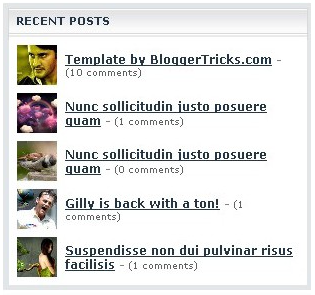
Searching for Recent Posts Widget with Thumbnails  for Blogger !


This post explains how to add Recent Posts widget in Blogger with image thumbnails:
well they are many hacks up there on the net for RECENT POSTS BLOGGER !
and actually i have tried many of them ! and while i was surfing  the net than i found this amazing hack !
finally i have got what i want ! this widget was made by the legend  “bloggertricks”   we thanks him for this amazing widget ,very simple recent posts …bravo for the great job !
Features:
Thumbails to Recent Posts
Comment Count

So, let's see how to install this cool widget in your blog..

1. Sign into Blogger dashboard
2. Go to Layout » Add a gadget » html/javascript


3. Just copy and paste this code..
<script language="JavaScript">

imgr = new Array();


imgr[0] = "http://i43.tinypic.com/orpg0m.jpg";

imgr[1] = "http://i43.tinypic.com/orpg0m.jpg";

imgr[2] = "http://i43.tinypic.com/orpg0m.jpg";

imgr[3] = "http://i43.tinypic.com/orpg0m.jpg";

imgr[4] = "http://i43.tinypic.com/orpg0m.jpg";
showRandomImg = true;

boxwidth = 298;

cellspacing = 8;

borderColor = "#ffffff";

bgTD = "#000000";

thumbwidth = 40;

thumbheight = 40;

fntsize = 12;

acolor = "#666";

aBold = true;

icon = " ";

text = "comments";

showPostDate = false;

summaryPost = 40;

summaryFontsize = 10;

summaryColor = "#666";

icon2 = " ";

numposts = 5;

home_page = "http://schemar-mag.blogspot.com/";

</script>

<script src="http://myblogtalk.com/bloggertemplates/js/recentposts_thumbnail.js" type="text/javascript"></script>


home_page : http://schemar-mag.blogspot.com/ (change this to your blog url)


Note : Make sure you selected YES in Settings » Site Feed » Full » Allow Blog Feeds


4. Save the Changes and happy widget :)


Source: blogger-dashboard.blogspot.com
Read more »

Top 15 effective Tips to Increase Blog Traffic !

Tuesday, October 5, 2010

 Every Blogger Should Read this tips to increase traffic !


Top amazing Tactics to Increase Blog Traffic

here are the best Simple Ways to Get Your Blog Noticed in the Blogosphere !

The blogosphere is a big and busy world with over 100 million blogs and growing. How do you attract visitors to your blog? Follow these simple tips to drive traffic to your blog.

1. Write Well and Write Often

Frequently updating your blog with useful content is the first step to building your blog's audience. The content you write is what will keep readers coming back for more. Make sure you have something meaningful to say to them and say it often to maintain their interest and keep them loyal.
Furthermore, post frequently to increase the number of chances you have for your blog's content to be noticed by search engines such as Google or Technorati.

2. Submit Your Blog to Search Engines

Get on the radar screen for the popular search engines such as Google and Yahoo! by submitting your blog's URL to them. Most search engines provide a 'Submit' link (or something similar) to notify the search engine of your new blog, so those search engines will crawl it and include your pages in their results.
It's important to understand that simply submitting your blog to search engines doesn't mean your pages will appear at the top of a Google search results screen, but at least your blog will be included and will have the chance of being picked up by a search engine.

3. Use and Update Your Blogroll

By adding links to sites you like in your blogroll, the owners of those blogs will find your blog and will be likely to add a reciprocal link in their blogrolls. It's an easy way to get the link to your blog in front of many readers on other blogs. The hope is that some of those readers will click on the link to your blog on the other blogs' blogrolls and find your content interesting and enjoyable turning them into loyal readers.

4. Harness the Power of Comments

Commenting is a simple and essential tool to increase your blog's traffic. First, respond to comments left on your blog to show your readers that you value their opinions and draw them into a two-way conversation. This will increase reader loyalty.
Second, leave comments on other blogs to drive new traffic. Make sure you leave your blog's URL in your comment, so you create a link back to your own blog. Many people will read the comments left on a blog post. If they read a particularly interesting comment, they are highly likely to click on the link to visit the commentor's website. It's important to make sure you leave meaningful comments that are likely to invite people to click on your link to read more.

5. Syndicate Your Blog's Content with an RSS Feed

Setting up an RSS feed button on your blog makes it easy for your loyal readers to not just read your blog but also know when you publish new content.

6. Use Links and Trackbacks

Links are one of the most powerful parts of your blog. Not only are links noticed by search engines, but they also act as a tap on the shoulder to other bloggers who can easily identify who is linking to their sites. Linking helps to get you noticed by other bloggers who are likely to investigate the sites that are linking to them. This may lead them to become new readers of your blog or to add links to your blog from theirs.
You can take links to other blogs a step further by leaving a trackback on the other blog to let them know you've linked to them. Blogs that allow trackbacks will include a link back to your blog in the comments section of the post that you originally linked to. People do click on trackback links!

7. Tag Your Posts

It takes a few extra seconds to add tags to each of your blog posts, but it's worth the time in terms of the additional traffic tags can drive to your blog. Tags (like links) are easily noticed by search engines. They're also key to helping readers find your blog when they perform searches on popular blog search engines such as Technorati.

8. Submit Your Posts to Social Bookmarking Sites

Taking the time to submit your best posts to social bookmarking sites such as Digg, StumbleUpon, Reddit and more can be a simple way to quickly boost traffic to your blog.

9. Remember Search Engine Optimization

When you write your blog posts and pages, remember to optimize your pages for search engines to find them. Include relevant keywords and links but don't overload your posts with too many relevant keywords or completely irrelevant keywords. Doing so can be considered spamming and could have negative results such as your blog being removed from Google's search entirely.

10. Don't Forget Images

Images don't just make your blog look pretty, they also help people find you in search engine listings. People often use the image search options offered by Google, Yahoo! and other search engines, and naming your images with search engine optimization in mind can easily boost your traffic.
The blogosphere is a big and busy world with over 100 million blogs and growing. How do you attract visitors to your blog? Follow these simple tips to drive traffic to your blog.

11. Consider Guest Blogging

Guest blogging can be done when you write a guest post on another blogger's blog or when another blogger writes a guest post on your blog. Both methods are likely to increase traffic as your blog will be exposed to the other blogger's audience. Many of the other blogger's readers will visit your blog to see what you have to say.

12. Join Forums, Web Rings or Online Groups

Find online forums, web rings, groups or social networking sites such as Facebook and LinkedIn where you can share ideas and ask questions of like-minded individuals. Add a link to your blog in your signature line or profile, so each time you post on a forum or participate in another online network, you're indirectly promoting your blog. Chances are many people will click on that link to learn more about you.

13. Promote Outside Your Blog

Promoting your blog shouldn't stop when you step outside the blogosphere. Add your blog's URL to your email signature and business cards. Talk about it in offline conversations. It's important to get your name and your blog's URL noticed offline, too.

14. Nominate Yourself and Other Blogs for Blog Awards

There are a number of blog awards given out throughout the year. Nominating yourself and other blogs and bloggers can draw attention to your blog and drive traffic to it.

15. Don't Be Shy

The most important part of the blogosphere is its community and much of your success as a blogger will be tied to your willingness to network with that community. Don't be afraid to ask questions, join conversations or just say hi and introduce yourself. Don't sit back and hope the online world will find you. Speak out and get yourself noticed. Let the blogosphere know you've arrived and have something to say!

Important free tips for you you don't want  to miss !

Increase Page Rank for Blogger in No Time … ......................


Source: blogger-dashboard.blogspot.com
Read more »

Label Cloud Widget for Blogger new release

Blogger Releases the new version of the Label Widget

Blogger,as a part of its 10th Birthday celebrations, has now released a new version of the label gadget.This one is much better that the old version
What is new?
1)It comes with a Label Cloud.
2)It lets you choose which labels are to be displayed.
3)You can customize it further using CSS.
Drawbacks
The cloud just has 5 variations.All labels will be divided into 5 classes depending on the usage of these labels.
It would have been better if there was a bigger number of classes.

 
as you see above ! you have the option to select whatever category you want it to show ! if you have any question just leave comment and i will answer you ASAP ! Happy Clouds :)


Source: blogger-dashboard.blogspot.com
Read more »

Increase Your Blog's Technorati Backlinks very effectively !

Sunday, October 3, 2010


Does Anyone want to increase their number of backlinks on Technorati? If so, then join the movement on Blogger Dashboard and watch your blog grow with us.
Here are the Rules:
  1. Copy the List into a blog post of yours.
  2. Add your link to the bottom of the list.
  3. Comment HERE so that we can update the list with your link.
  4. Watch the backlinks to your blog increase dramatically via Technorati.
  5. The sooner you join, the more backlinks you will receive.
*–Copy Here - Technorati Authority–*
  1. Make Money Online | Money Blogging Tips
  2. Blogger Dashboard | http://blogger-dashboard.blogspot.com
  3. Indo Contest
  4. Mga Kwentong Ma Alamat
  5. Contest Love
  6. It Blood
  7. I Heart Contest
  8. Nurse Jen Doll
  9. Your Web and Graphics Design
  10. My Blog Contest
  11. Prize King Contest Blog
  12. Computer Collections
  13. Medan Blogger
  14. Eiffel Tower
  15. Programming the Life
  16. John Doro Dot Com
  17. Paco Contest
  18. Couch Surfing Host
  19. Erick's Blog
  20. My Life 4 Hire
  21. The Spirit of Blogging
  22. EmTNester
  23. Amori, poesi, arte, chat
  24. Great Wall of China
  25. The Painted Veil
  26. FeeFiFoto Blog
  27. I am Harriet
  28. Phoenix2Life
  29. Anurag Bhateja
  30. Online Treasure
  31. Gorilla Sushi
  32. London Eater
  33. News n' Tech Palace
  34. Sherry Rambling
  35. Blogging Tips and Tools
  36. Selbst Management
  37. Skip Ratt
  38. Eljon
  39. Heart Net
  40. Just 4 You
  41. Widgets For Free
  42. Bubble Crush
  43. GoGalavanting
  44. Mesothelioma Cancer Help
  45. How Things Do
  46. Hardware Rig
  47. Reality View
  48. Utah Web Design
  49. Hero Help Tutorials
  50. Nub Lag Teh Server
  51. Jobs Human Resources
  52. Naeem's Blog
  53. Facts For History
  54. Prasdikatama
  55. McPhee-Env
  56. PeriPheryPoem
  57. Writings of RYU
  58. Heart Net
  59. Cater Hater
  60. Tech Recipe
  61. Tech Boy UK
  62. Internet Leashed
  63. Tha Good Life Reviews
  64. Solaris Photography
  65. bSaves - Saving Energy Search Engine - Black Google
  66. Sitfu
  67. The All Rounder
  68. The Science of Getting Richer
  69. University Results
  70. Surigao Digital Services
  71. Senior BabyBoomers
  72. Gazlo
  73. Jessi & Ray Dream Life
  74. Life Around Raymond
  75. Susan Boyle
  76. Get Any Thing
  77. Exclusive Arena
  78. The Star Girl
  79. Tem Bolog
  80. Trash XP
  81. How Hero - How to Tutorials - Video Tutorials
  82. Blog Darma
  83. Money Central Online
  84. Watch Free Online Movies
  85. Zoom Your View
  86. Hey I Want a Job
  87. Dog Pet Grooming Supplies
  88. Find Torrent Search Engine 
  89. www.jefusion.info
  90. www.thegenerationv.com
  91. http://beginlearn.blogspot.com/
  92. byspace.blogspot.com
  93. http://bangla-songs-music.blogspot.com
  94. http://about-new-blogger.blogspot.com
  95. http://www.theroadtovalor.blogspot.com/
  96. http://myadventuresinclickland.blogspot.com/
  97. http://wwwthefoldblog.com
  98. http://moh-wagiono.blogspot.com/
  99. http://micromaxreviews.blogspot.com/
  100. www.me36hour.blogspot.com
  101. http://xmusiq.blogspot.com/
  102. http://howdomakehealthylife.blogspot.com
  103. http://valentine.viviti.com
  104. http://bollymoviesdownload.blogspot.com/
  105. http://www.egossips.co.cc/2008/08/increase-your-blogs-technorati.html
  106. http://chennaibikers.blogspot.com
  107. http://dimazzblog.blogspot.com
  108. http://ict-photoshop.blogspot.com/
  109. http://alkoga.blogspot.com/
  110. http://tipsbuzz.blogspot.com/2009/09/backlink-program.html
  111. http://granoblog.blogspot.com/
  112. http://batdpunk.blogspot.com
  113. ADD YOUR LINK HERE

  • LAST UPDATE WAS ON SEPTEMBER / 7 /2009


  • IMPORTANT NOTE !
    YOU CANNOT PARTICIPATE UNLESS YOU MAKE THE SAME POST ON YOUR BLOG AND THAN YOU CAN COME HERE WITH THE BACKLINK TO YOUR BLOG !!! ONLY BACKLINKS TO THE SAME POST TO YOUR BLOGS WILL BE UPDATED ! PLEASE DON’T PUT YOUR LINK HERE BEFORE YOU MAKE THE SAME POST ON YOUR BLOG OR SITE !
    Note that as much we have links for friends and other sites which they would like to increase their backlinks as much as it is good for all of us !

    Don’t forget to promote this article via social networking and word of mouth.. It only means better results for yourself and everyone on the list.


  • PLEASE GUYS I AM NOT THE ONLY WORKING HERE TO PROMOTE YOUR LINKS ON MY BLOG !!! YOU NEED TO HELP ME AS WELL TO PROMOTE THIS LIST ON YOUR BLOGS AND BETWEEN YOUR FRIENDS ! GOOD LUCK AND HAPPY BLOGGING :)
    *–End Copy - Get Pasting! –*


  • Source: blogger-dashboard.blogspot.com
    Read more »

    Tabbed Content Widget Box For Blogger

    A Professional tabbed navigation widget for blogger templates !

    I know there are quite a few tutorials out there that demonstrate how to create tabs with CSS & jQuery ! but after my research on the net for blogger tabbed navigation content  ! finally i came out with the following source THIS WIDGET CREATED BY THE LAGENT SOHTANAKA.COM :

    Simple Tabs w/ CSS & jQuery


    Follow These Step to Install this widget >>
    1. Log in to your Blogger account
    2. On your Blogger Dashboard, click on the "Layout" link as shown in the blow image


    3. Click On "Add a Gadget" as displayed in the Below Image

    4.Scroll down the list and find "HTML/ Javascript" and click on the "+" button

    FINALLY INSERT THIS CODE WHICH IS BELLOW AND SAVE IT ! THAN PREVIEW YOUR TEMPLATE :) DONE
    <style type="text/css">
    body {
    background: #f0f0f0;
    margin: 0;
    padding: 0;
    font: 10px normal Verdana, Arial, Helvetica, sans-serif;
    color: #444;
    }
    h1 {font-size: 3em; margin: 20px 0;}
    .container {width: 500px; margin: 10px auto;}
    ul.tabs {
    margin: 0;
    padding: 0;
    float: left;
    list-style: none;
    height: 32px;
    border-bottom: 1px solid #999;
    border-left: 1px solid #999;
    width: 100%;
    }
    ul.tabs li {
    float: left;
    margin: 0;
    padding: 0;
    height: 31px;
    line-height: 31px;
    border: 1px solid #999;
    border-left: none;
    margin-bottom: -1px;
    background: #e0e0e0;
    overflow: hidden;
    position: relative;
    }
    ul.tabs li a {
    text-decoration: none;
    color: #000;
    display: block;
    font-size: 1.2em;
    padding: 0 20px;
    border: 1px solid #fff;
    outline: none;
    }
    ul.tabs li a:hover {
    background: #ccc;
    }    
    html ul.tabs li.active, html ul.tabs li.active a:hover  {
    background: #fff;
    border-bottom: 1px solid #fff;
    }
    .tab_container {
    border: 1px solid #999;
    border-top: none;
    clear: both;
    float: left; 
    width: 100%;
    background: #fff;
    -moz-border-radius-bottomright: 5px;
    -khtml-border-radius-bottomright: 5px;
    -webkit-border-bottom-right-radius: 5px;
    -moz-border-radius-bottomleft: 5px;
    -khtml-border-radius-bottomleft: 5px;
    -webkit-border-bottom-left-radius: 5px;
    }
    .tab_content {
    padding: 20px;
    font-size: 1.2em;
    }
    .tab_content h2 {
    font-weight: normal;
    padding-bottom: 10px;
    border-bottom: 1px dashed #ddd;
    font-size: 1.8em;
    }
    .tab_content h3 a{
    color: #254588;
    }
    .tab_content img {
    float: left;
    margin: 0 20px 20px 0;
    border: 1px solid #ddd;
    padding: 5px;
    }
    </style>
    <script type="text/javascript"
    src="http://ajax.googleapis.com/ajax/libs/jquery/1.3/jquery.min.js"></script>
    <script type="text/javascript">
    
    $(document).ready(function() {
    
    //Default Action
    $(".tab_content").hide(); //Hide all content
    $("ul.tabs li:first").addClass("active").show(); //Activate first tab
    $(".tab_content:first").show(); //Show first tab content
    
    //On Click Event
    $("ul.tabs li").click(function() {
    $("ul.tabs li").removeClass("active"); //Remove any "active" class
    $(this).addClass("active"); //Add "active" class to selected tab
    $(".tab_content").hide(); //Hide all tab content
    var activeTab = $(this).find("a").attr("href"); //Find the rel attribute value to identify the active tab + content
    $(activeTab).fadeIn(); //Fade in the active content
    return false;
    });
    
    });
    </script>
    </head>
    
    <body>
    
    <ul class="tabs">
    <li><a href="#tab1">Gallery</a></li>
    <li><a href="#tab2">Submit</a></li>
    <li><a href="#tab3">NEWS</a></li>
    <li><a href="#tab4">FAQ</a></li>
    </ul>
    
    <div class="tab_container">
    <div id="tab1" class="tab_content">
    <!--Content-->
    </div>
    <div id="tab2" class="tab_content">
    <!--Content-->
    </div>
    <div class="tab_container">
    <div id="tab3" class="tab_content">
    <!--Content-->
    </div>
    <div class="tab_container">
    <div id="tab4" class="tab_content">
    <!--Content-->
    </div>
    </div>
    </body>
    </html>


    NOTE : THIS WIDGET IS MADE ON WIDTH 500px SO IF YOUR SIDEBAR OR THE PLACE WHERE YOU WANT THIS WIDGET IS LESS OR MORE THAN YOU NEED TO ADJUST THE SIZE TO YOUR NEED !


    You may want to see here another tabbed widget for blogger !


    Easy 5 tabbed Content Widget for Blogger


    THANKS AND WELCOME : GO GUMGUM:)


    Source: blogger-dashboard.blogspot.com
    Read more »


    Copyright © 2010 Blogger Tips And Tricks | Affiliate Marketing | Make Money Blogging. All Rights Reserved. Using Xclear Theme | Bloggerized by Themescook Developed by Helios | Powered by Blogger