Hide Blogger Navbar in New Blogger Blogspot

Sunday, September 5, 2010

 How to Remove Blogger Beta Navbar
Want to get rid of the blogger toolbar in new blogger that just came out of beta ? 


If you have shifted your blogspot blog from old blogger to the new blogger beta, you may have noticed that the previous CSS code to remove the blogger navbar will no longer be effective. That's because Google now uses different CSS tags to display the blogger bar. [#navbar-iframe instead of #b-navbar]

If you want to hide the nav-bar in your blogger blog, here's what you should do (these instructions refer to the "new" Blogger layouts templates):
  • Go to Template>Edit HTML in your Blogger dashboard and first back-up your template to ensure you can restore it if you make unwanted mistakes!
  • Next, find this line in the template: </b:skin>
  • Just before this line, insert the following lines of code:
#navbar-iframe {
height:0px;
visibility:hidden;
display:none
}
You can preview your template to see the effect in action, and then save your template to save the changes for good. (Thanks to Testing Blogger Beta for this hack!).


Read more »

How do I Commenting on Blogger with OpenID ?

Saturday, September 4, 2010

OpenID Commenting on my Blogger BlogSpot

OpenID is an open standard that allows users of OpenID-enabled services to log in to any OpenID-supported site with one set of login credentials. What does that mean for your blog? It's a way to authenticate user comments on your blog, without requiring your readers to have a Google Account.

For example, let's say you have a friend, Brady from LiveJournal, who doesn't have a Google Account. With OpenID, he can now comment on your blog using his OpenID credentials and identify himself as the owner of http://brady.livejournal.com, instead of commenting anonymously. Please see the OpenID site for more information about OpenID.

How do I Enable OpenID Commenting on my Blog?

Simply go to your Settings | Comments tab and select "Registered Users" or "Anyone" for the "Who Can Comment" option. Don't forget to click "Save Settings" on the bottom of the page.

Note that allowing "Anyone" to comment on your blog will allow more than just OpenID users to comment.

How do I comment Using my OpenID identity?

Start off by going to the comment page of the post where you'd like to comment. Then, select your OpenID provider from the drop down menu next to the "Sign-in using" option. If your OpenID provider is not on the list, please choose the "Any ID" option.

Next, provide your OpenID login information. After you click "Publish Your Comment," you will be redirected to your OpenID provider to authenticate your ID. After authenticating with the provider, you will return to the comments page and your comment will automatically be posted. Your comment will appear appear with a OpenID icon to the left of the comment.
Note that your display name is the name sent to us by the OpenID provider. If no display name is given, we will try to derive it from your OpenID URL. This is the name that will be displayed as the author of the comment and will be linked to your OpenID URL.


Source: blogger-dashboard.blogspot.com
Read more »

How to Add Floating Twitter Button on Blogger Blog

Friday, September 3, 2010

How to add twitter button on Blogger blog?

How to add Follow Me on Twitter badge on Blogspot blog?

How to add Follow Us on Twitter badge on Blogspot blog?

How to add Twitter Follow Me button on blog?

How to add Twitter Follow Us button on blog?

How to add link to Twitter page on Blogger blog?


Firstly, go to Dashboard > Design > Edit HTML.


follow on twitter button


Then search for </b:skin> and add this code before it.


#twitter-follow { border: 0; position: fixed; top: 300px; right: 0;}


To change the position of the Twitter button, you can change "300" (distance from the top) and "right" to "left" if you want the button to be on the left.


Then search for </body> and add this code before it.


<div id='twitter-follow'> <a href='http://twitter.com/username' target='_blank'><img alt='Follow Me on Twitter' src='https://blogger.googleusercontent.com/img/b/R29vZ2xl/AVvXsEhDMZ_vki8k8_TMZdnOmUthJv9EpFwzvPopJuhBnuQRFKOHpLvdlRE_qX8iVI-awa4-riQCkC02gjFANlL_ZVQzC-yGfzhCEXZcz-Y0OVkmw4QCOma_WmciKUM0HY5A-lorY7wZRmNdXcU/s1600/twitter+follow+me+button.gif'/></a></div>


twitter follow us button


Remember to change the "username" to your Twitter account username.


If you want it to be "Follow Us on Twitter", use this image link - https://blogger.googleusercontent.com/img/b/R29vZ2xl/AVvXsEirPX6M22U7kSXTiiXDiBq4x0miSlW5FioNAIneqcigia4WaGqQgDq4HNOIBSzYRX_5djjdB6niW5IY4UZ8RnHUVhSBd1cz7GBZORoPGD6Q_jELA-Swkux96TH8l_MYjcVO9Ijgm-YMDG8/s1600/twitter+follow+us+button.gif


twitter follow us button


Enjoy and all the best in getting more followers on Twitter!
Read more »

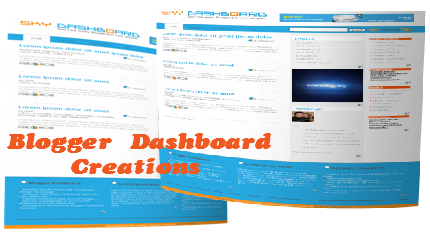
Instruction for Sky Dashboard my fifth Blogger template

Wednesday, September 1, 2010


Demo | Download

Looking for professional simple blogger templates ! this is your choice .

well i have designed this template within these colors because I wanted to have different color choice for you guys ! many people prefer very simple design with lights colors .
anyways i don't  think that i can say on my templates nice or not unless you say that !
this template looks very simple but it is very powerful ! because content the following widgets :
  1. three columns blogger template
  2. powerful colors picked
  3. beautiful graphics combination
  4. Related Posts widget included
  5. Read more functions with png design
  6. three footer columns added
  7. adsense top banner 468x60 to increase your earning
  8. beautiful social bookmarking added after each post
  9. search bar with png design
  10. nice effect menu
  11. fancy RSS subscription button 
first if you want to change the adsense top banner 468x60 ! than you need to locate this line of code :
Search for this code <div class='headerright'> and replace the following code with yours and save your template !
&lt;script type=&quot;text/javascript&quot;&gt;&lt;!--
google_ad_client = &quot;pub-1746391924704316&quot;;
google_ad_host = &quot;pub-1599271086004685&quot;;
/* 468x60, created 7/15/09 */
google_ad_slot = &quot;5155662931&quot;;
google_ad_width = 468;
google_ad_height = 60;
//--&gt;
&lt;/script&gt;
&lt;script 
src=&quot;http://pagead2.googlesyndication.com/pagead/show_ads.js&quot; type=&quot;text/javascript&quot;&gt;
&lt;/script&gt;


for the logo you need to locate this code and replace your image with red highlighted color !


<div class='headerleft'>

     <a href='/'><img alt='SimplyRed Template' src='http://lh6.ggpht.com/_9b1traaMESE/Snk_EPqYc-I/AAAAAAAAAdk/V2acHxjF9_U/headerd.png' title='SimplyRed'/></a>


</div>


for another instruction nothing needed ! just use it and enjoy ! please comment bellow for any issue ….


Happy blogging :)


Source: blogger-dashboard.blogspot.com
Read more »

Easy Blogging from iGoogle and Gmail

Why not Blogging from iGoogle and Gmail ?

The Blogger Posting gadget makes it easy to post to your blog from the convenience of Gmail or your iGoogle homepage.

To add the Blogger Posting Gadget to your iGoogle page, simply click this button:
Add to Google
Then click the blue "Add to Google" button. Make sure that you're signed in with the same Google account that you use for Blogger. Once you've added the Blogger Posting Gadget you will see the gadget on your iGoogle page:
To add the Blogger Posting Gadget in Gmail, you'll first have to enable the Add Gadget by URL lab feature from your settings:

Once you've enable this Labs feature, then you can add the posting gadget by simpling entering its URL into the Gadget tab in your Settings. Here's the URL:
http://www.blogger.com/gadgets/post.xml
In the top right corner of the gadget you will see the title of your blog. If you have more than one blog, there will be a drop-down menu in the corner so you can select the blog you'd like to post to. You can then enter a title and write a post. You also have the option to add labels to your post as well. Once you have finished writing your post, click "Publish" to publish your post or click "Save Draft" to save your post back to Blogger without publishing it.
Notes:
  • The gadget supports editing the HTML of title and body.
  • If you start writing a post and decide you want to upload images or use other rich text features, just click "Save Draft". The gadget will save your post, then give you a link to directly edit the post in Blogger.
  • The gadget works in Firefox, Chrome, Safari 3, Internet Explorer and on the iPhone.

Read more »

How do I find an old post in blogger?

To find old post in blogger !

All your posts are available for editing on the Posting | Edit Posts tab, or by clicking the "Manage Posts" link on your dashboard.

You can use the search box to filter the list for posts containing particular words. You'll also see a list of any labels you're using. Clicking on a label in this list will show you only posts with that label.

On the right side of the list there are a few other options that may help you. You can change the number of posts displayed, or just scroll back in time through the chronological list. There are also links to display only drafts, or only published posts.

Note: You can use Quick Edit links to edit your posts directly from your archives. This is the easiest option for finding and editing old posts from particular dates.

Source: blogger-dashboard.blogspot.com
Read more »


Copyright © 2010 Blogger Tips And Tricks | Affiliate Marketing | Make Money Blogging. All Rights Reserved. Using Xclear Theme | Bloggerized by Themescook Developed by Helios | Powered by Blogger